Choose and crop
Select a JPG, PNG, or WebP up to 15 MB, then crop closely around the subject you want to build.
Turn a photo or illustration into a buildable bead grid with reference colors, exact quantities, and downloadable PNG and CSV files.
JPG, PNG, or WebP up to 15 MB. Your image is processed and saved only in this browser.
Four-step workflow
Begin with the default settings, review the material list, and adjust one control at a time when the first pattern needs clearer shapes or fewer colors.
Select a JPG, PNG, or WebP up to 15 MB, then crop closely around the subject you want to build.
Choose a width from 8 to 150 cells. Height follows the proportions of the confirmed crop.
Set a 2–32 color maximum and select the community reference palette that matches your bead collection.
Check the grid and exact quantities, then download a PNG pattern and CSV material list.
Pattern tricks
Use these adjustments when the first pattern is difficult to recognize, too noisy, or unnecessarily complicated to build.
Remove distant background and fill the crop with the subject. This gives each bead position a clearer purpose.
When faces, letters, or thin outlines disappear, add grid width before increasing the number of bead colors.
Reduce the color limit when similar shades appear in tiny quantities. Larger connected areas are easier to sort and place.
Keep dithering off for crisp designs. Enable it only when photograph gradients need intermediate tones and scattered beads remain practical.
Image to fuse beads
A fuse bead pattern maker converts an image into a finite grid for a physical bead project. CraftGrid maps each occupied cell to a selected reference color and counts the beads required. The grid preview, material table, PNG, and CSV use the same result, keeping dimensions and quantities consistent.
Unlike a general pixel effect, this fuse bead pattern maker is designed around construction decisions. Grid width determines detail and project size. The color limit affects how many bead shades must be sourced. Palette selection connects the on-screen pattern to approximate reference names and codes for supported product families without claiming official manufacturer measurements.
Pattern features
The page combines image conversion with the practical information needed before placing the first bead.
Each visible square represents one planned bead position, with optional grid lines for easier row-by-row reference.
Choose community-maintained approximate colors for supported Perler, Hama, Artkal, Nabbi, Mard, or Yant product families.
The fuse bead pattern maker totals every used reference color and excludes empty transparent cells from bead counts.
Download a visual pattern plus a structured material list containing reference codes, RGB values, and exact quantities.
Settings explained
The best settings depend on the image, project size, available colors, and required detail.
Start near 40–60 cells for a medium design. Reduce the width for a quick icon or bold silhouette. Increase it when eyes, lettering, or thin outlines disappear. Height follows the crop proportions and is capped at 150 cells.
Try 12–16 colors first. Add colors when neighboring areas merge. Lower the limit when the material list contains similar shades with only a few beads each. The maximum is a ceiling, so the finished pattern may use fewer colors.
Leave dithering off for logos, pixel art, flat illustrations, and strong boundaries. Enable it when photograph gradients become broad bands. Dithering can suggest intermediate tones but may create isolated colors that take longer to place.
Select the palette matching your product family. Each option contains community-maintained approximate RGB values and reference codes. Screens, lighting, batches, and measurements vary, so compare critical colors with physical beads before a large build.
Buildable output
The fuse bead pattern maker produces a fixed grid and material count from the same cell data. Empty transparent cells are excluded. Used colors include an approximate name or code and quantity, helping you prepare trays, check stock, and notice rare shades before construction.
The PNG and CSV include manual corrections from Edit Pattern. PDF instructions, multi-board layouts, and a blank-canvas designer are not supported.
Real pattern example
This real fuse bead pattern maker example maps broad source colors onto a countable grid.
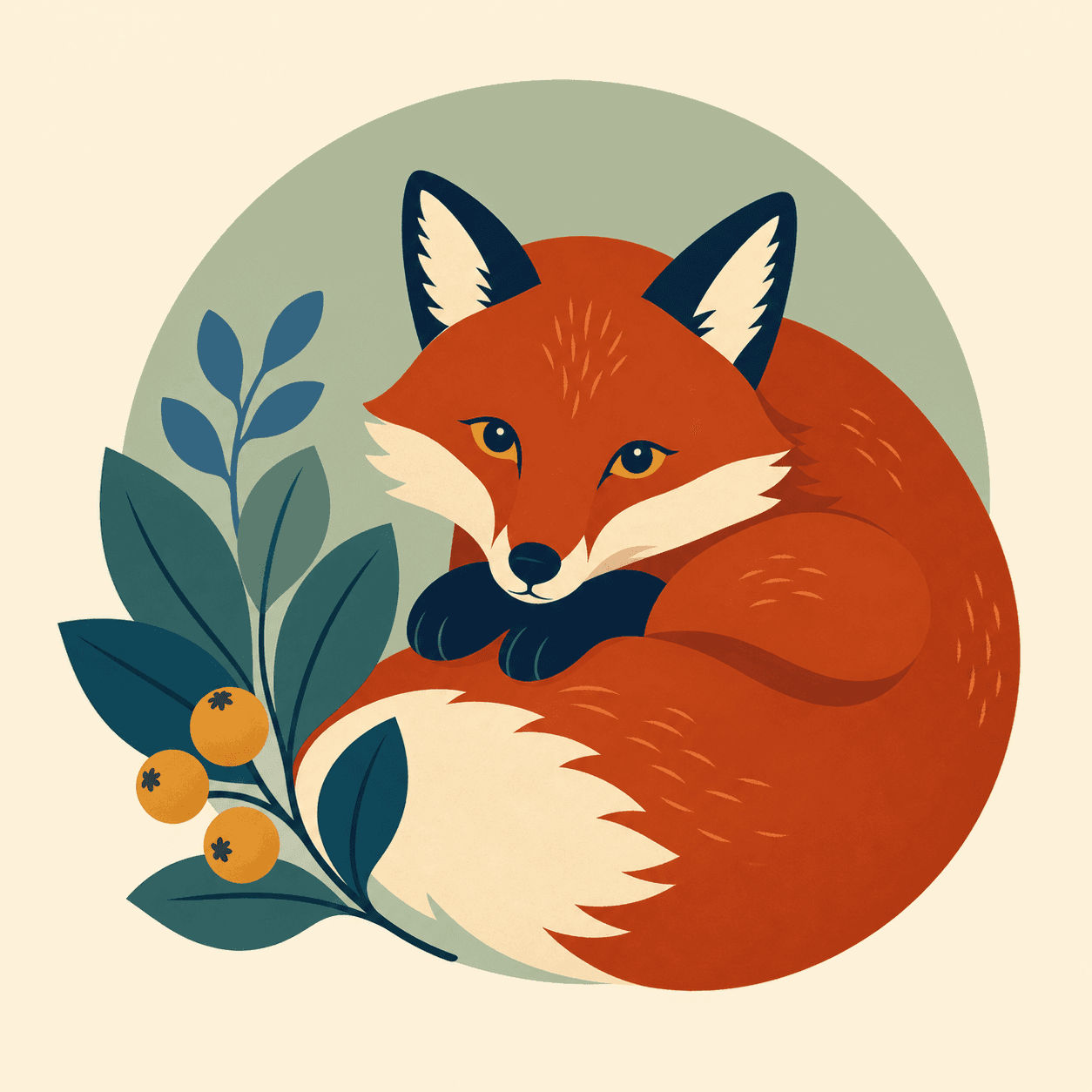
Source illustration
Connected colors support a limited material palette.
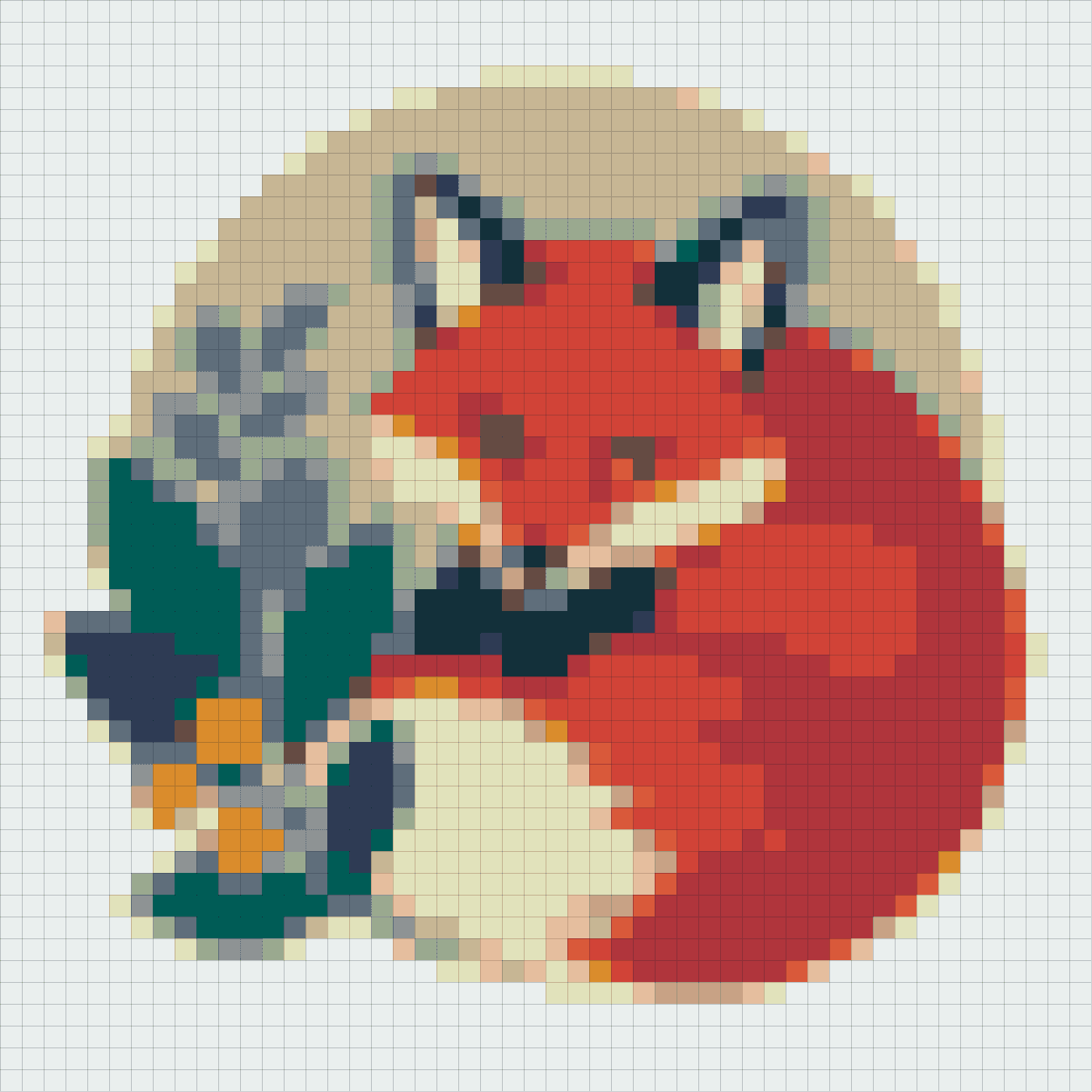
Fuse bead pattern
Visible grid cells preserve the curled fox and foliage as a buildable design.
Privacy and palette notice
This fuse bead pattern maker processes images locally and can store the latest project in this browser. CraftGrid does not receive the source. You can clear saved data, and storage failure does not block generation or export.
Perler, Hama, Artkal, Nabbi, Mard, and Yant identify compatible community reference palettes. CraftGrid is independent and is not affiliated with, endorsed by, or sponsored by those manufacturers. Colors are approximate references, not official measurements or guaranteed physical matches.
More tools
Use the Image to Pixel Art Converter when you only need a source-adaptive palette and downloadable PNG. It omits bead brands, reference codes, quantities, and CSV so the general conversion workflow stays simpler.
Open the Image to Pixel Art ConverterOpen the Minecraft Image ConverterOpen the Cross Stitch Pattern MakerYes. This fuse bead pattern maker is free, requires no account, and lets you download both a PNG pattern and a CSV material list after adjusting the image and settings.
Yes. Select the Perler community reference palette to map the image to approximate Perler color names and reference codes. CraftGrid is independent and does not claim official manufacturer measurements, affiliation, or endorsement.
No. Processing happens locally. The latest project can be stored in this browser for recovery, but the source image is not sent to CraftGrid or included in analytics.
Start around 40–60 cells wide. Use fewer cells for simple icons and more when a photo needs recognizable faces, lettering, or thin outlines.
A starting limit of 12–16 colors balances detail with an achievable material list. Lower the limit for bold graphic designs or raise it gradually when important neighboring areas merge together.
Dithering alternates nearby bead colors to suggest intermediate tones. It can help photographs and gradients, while the off setting usually creates cleaner connected blocks for logos, icons, and existing pixel art.
Download a PNG of the current pattern and a CSV material list containing reference details and exact counts for every used color. Manual corrections made with Edit Pattern are included. PDF and multi-board instructions are not currently supported.